
Google Storage Full? How to Free Up Space Without Deleting Your Memories or Paying Google
Last reviewed September 2026
The definitive 2026 guide to freeing space in Gmail, Drive, and Google Photos without losing what matters.
You get the warning: Your Google storage is full.
Gmail may stop receiving messages. Google Photos may stop backing up your camera roll. Drive may refuse your next upload.
Google offers one immediate solution: pay for more storage. Its cleanup tool offers another: delete your largest files first.
But your largest file may be your daughter's first steps. It may be your wedding video or the last recording you have of someone you love.
Google sees two gigabytes. You see a memory.
Fortunately, those are not your only choices. You can remove storage you genuinely do not need, then move large things you want to keep to another Google account you own.
Everything below can be done manually. If you would rather automate it, or you are helping a parent or someone less technical, we will show you a simpler option too.
Start here
Before opening Gmail and deleting thousands of tiny messages, check what is actually using your storage.
Open the Google One storage breakdown. It shows how much space Gmail, Google Drive, and Google Photos are using.
Then follow this order:
- Protect what matters. Exclude recent, starred, important, personal, and irreplaceable items before selecting anything in bulk.
- Clear the easy wins. Start with Spam, Trash, obsolete backups, screenshots, old Promotions, and other low-regret clutter.
- Review the largest items. A few old videos or giant attachments may be responsible for most of the problem.
- Move what you want to keep. Verify every destination copy before removing the original, then review and empty Trash last.
Always work from high-impact, low-regret actions toward permanent ones.
Before you delete anything
A good storage cleanup is not one where you hope to notice something important. It is one where important items are protected before they become candidates.
Start with older items
Recent email and files are more likely to still matter.
For a cautious first pass, use older_than:1y in Gmail. If the results look safe, you can later expand the search to older_than:3m.
Exclude starred and important mail
Add these exclusions to broad Gmail searches:
-is:starred -is:importantThese operators keep starred and important mail out of most results, but you should still review conversations before deleting them. Gmail can return an entire conversation when one message matches the search, even if another message in that conversation is protected.
Protect personal and life-admin terms
Be cautious around subjects, senders, or file names containing words such as:
receipt, invoice, order, confirmation, refund, tracking, statement, tax, mortgage, insurance, contract, passport, license, medical, wedding, babyYou can also exclude important people directly:
-from:accountant@example.comIf something sounds like paperwork, proof, or a milestone, skip it today.
Use Trash as your recovery window
Most cleanup should go to the relevant Google Trash first. Review Trash only after the rest of the cleanup is complete.
Emptying Trash is permanent. It should be the final action, not the first shortcut.
How Google storage works
Each personal Google account includes up to 15 GB shared across Gmail, Google Drive, Google Photos, and certain backups.
When the account fills:
- Gmail may stop sending and receiving messages.
- Google Photos may stop backing up new photos and videos.
- Google Drive may stop accepting new files.
- Items in Trash and Gmail Spam can continue using storage until permanently cleared.
After a large cleanup, Google says its storage calculation can take 48 to 72 hours to update. Do not assume the cleanup failed if the number does not change immediately.
Clean up Gmail, Google Drive, and Google Photos
Clean up Gmail
If Gmail storage is full, start with old messages that have large attachments, then review Promotions, Social, Spam, Trash, and drafts with attachments. To bulk delete Gmail messages safely, search by size or sender, preview the results, then delete in batches.
Years of attachments can quietly consume several gigabytes.
Start with large, older messages while excluding starred and important mail:
has:attachment larger:10M older_than:1y -is:starred -is:importantFor the largest messages:
has:attachment larger:20M older_than:1y -is:starred -is:importantYou can also search by attachment type:
filename:pdf larger:5M older_than:1y -is:starred -is:importantfilename:zip larger:10M older_than:1y -is:starred -is:importantDeleting a Gmail conversation removes its attachments too. Download anything you need before deleting the conversation.
Clear lower-value categories
Try these searches one at a time:
category:promotions older_than:1y -is:starred -is:important{category:social category:updates category:forums} older_than:1y -is:starred -is:importantin:drafts has:attachment older_than:1yin:spamWhen Gmail returns many pages, selecting the visible page does not select every matching conversation. Gmail displays a separate option to select all conversations matching the search.
Review the results before using it.
Finally, review Gmail Trash. Deleted mail continues using storage until it is permanently removed.
Google documents additional operators in its Gmail search guide.
Clean up Google Drive
Open Google Drive Storage. Your largest owned files should appear near the top.
Look for:
- Old videos and screen recordings
- ZIP archives and installers
- Presentation and design exports
- Downloaded media
- Abandoned project files
- Files already preserved somewhere else
Files merely shared with you generally use the owner's storage, not yours. Focus on files you own.
Then review three easily missed categories:
Probable duplicates
Similar names and sizes do not prove that two files are identical. Preview or compare both files and preserve a verified copy before deleting either one.
Storage Cleaner can identify exact Drive duplicates by comparing Google's file checksums. When working manually, treat matching names and sizes only as clues.
Old device backups
Open Google Drive Backups. Remove a backup only after confirming that you no longer use or need the device.
Hidden app data
Open Google Drive settings, select Manage apps, and review storage left by connected applications.
Move unwanted files to Drive Trash first. Empty Trash only when you are confident nothing is missing.
Clean up Google Photos
Google Photos often offers the largest savings and carries the greatest emotional risk.
Open Google Photos storage management, then begin with large photos and videos.
Preview anything personal. Look for accidental recordings, screen recordings, duplicate exports, downloaded clips, and videos already preserved elsewhere.
Then review:
- Screenshots that served a temporary purpose
- Media saved by messaging and social apps
- Blurry photos
- Unsupported videos
- Google Photos Trash
Treat "blurry" and "unsupported" as review suggestions, not automatic deletion decisions. An imperfect photo can still be priceless, and an unsupported video may play correctly in another application. Download anything you might want before deleting it.
Convert Motion Photos to stills
Android and iOS phones can capture Motion Photos: a still image bundled with a short video clip. Many camera rolls are full of them without their owners realizing how much space they consume.
Converting a Motion Photo into a regular still keeps the picture and removes the video portion, reclaiming roughly 80% of that item's storage. Storage Cleaner offers this as a guided, reversible flow: the originals remain in Google Trash for 30 days before permanent deletion. Google Photos itself does not offer a bulk conversion.
Consider Storage Saver
If eligible media was uploaded in Original quality, Google Photos may offer Recover storage, which converts it to Storage Saver quality.
This can reduce storage without deleting the media, but it is an irreversible quality trade-off. Photos above 16 megapixels may be resized to 16 megapixels, and videos above 1080p may be resized to 1080p. Some file types are not eligible for compression.
Photos and videos uploaded in Original quality count against storage regardless of when they were uploaded.
Photos and videos backed up in Storage Saver, previously called High quality, or Express quality before June 1, 2021 do not count against your storage. Deleting those items will not create additional headroom.
Deleting from Google Photos may also remove the item from synced devices, albums, and shared albums created from that original. Confirm that another independent copy exists before removing something irreplaceable.
Google explains what happens when you delete Photos items in its deletion guide.
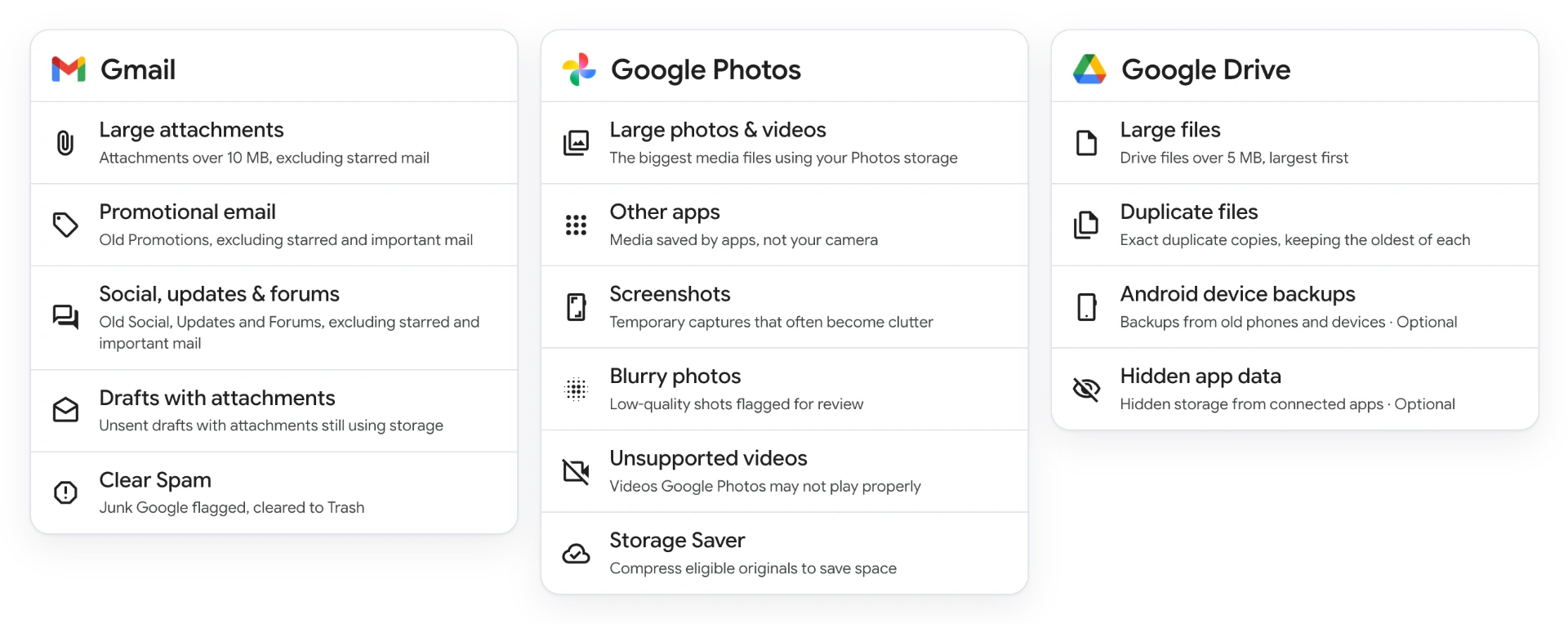
Prefer to see all of this in one place? Storage Cleaner runs these searches and shows how much space each category could reclaim before anything changes.
Run a free scan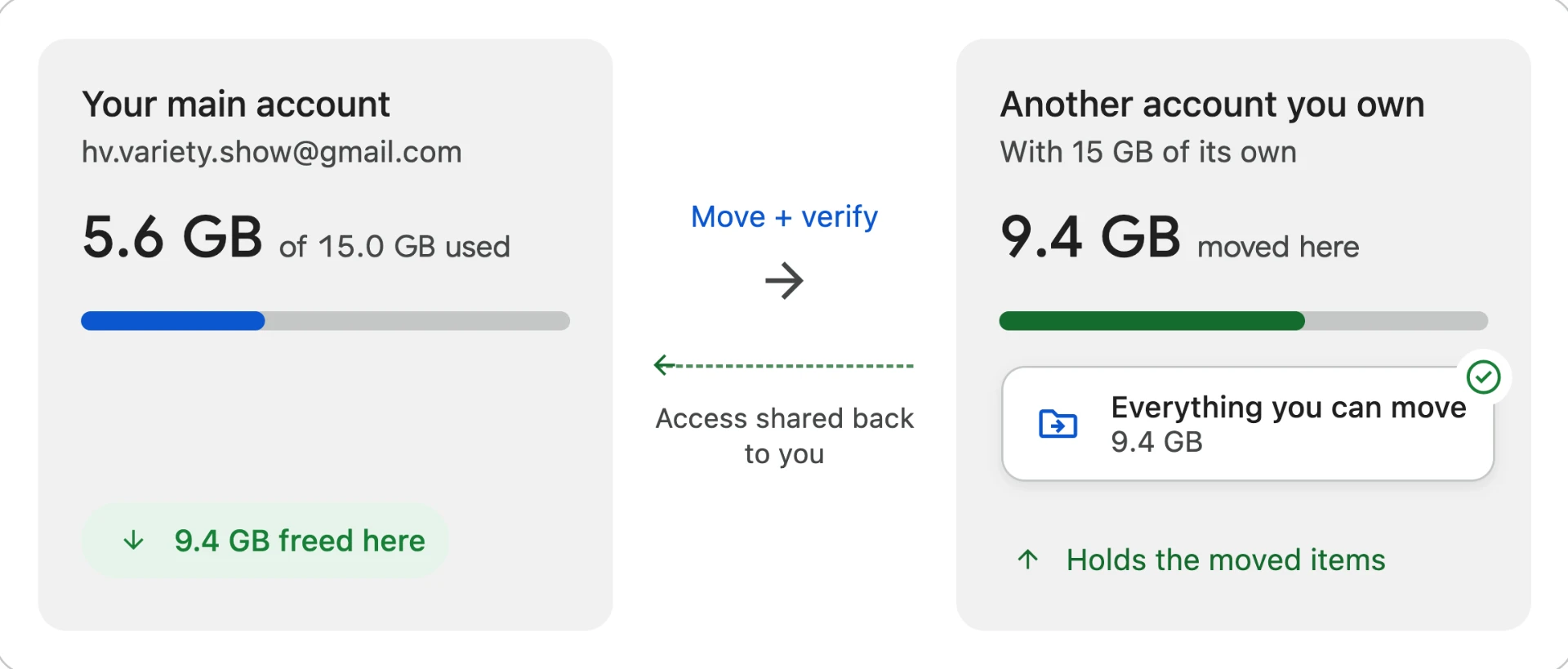
The third path: move what you want to keep
Eventually, the disposable storage is gone. What remains is large because it matters.
Every eligible personal Google account has its own quota of up to 15 GB. If you own four eligible accounts and each includes 15 GB, they can collectively provide up to 60 GB.
This is not one pooled 60 GB account. The storage remains distributed.
The method works by moving selected content to another account you own while retaining access from your primary account. Google controls the storage included with each account, as well as account creation and verification requirements.
Our guide to getting up to 60 GB free explains the complete method step by step.
| Product | What moves | How you retain access |
|---|---|---|
| Google Drive | File ownership moves to the other account | The file is shared back |
| Google Photos | Verified copies move to the other account | You view them through an album shared back |
| Gmail | Messages and attachments become archived files in the other account's Drive | Those files are shared back |
Google Drive
Drive supports ownership transfer between personal Google accounts:
- Share the file with your other personal account.
- Request an ownership transfer.
- Sign in to the destination account and accept the transfer.
- Verify that the file still opens from your primary account.
You remain the owner until the other account accepts. After acceptance, the file counts toward the new owner's storage and no longer counts toward yours.
The file may move out of its former My Drive location. You may need to open it through Shared with me or create a shortcut.
Transferring a folder does not necessarily transfer ownership of every file inside it. Review the files individually and follow Google's ownership-transfer rules.
Google Photos
Google Photos does not offer a simple ownership-transfer button. Moving selected media safely requires a specific sequence:
- From your primary account, create an album containing the photos and videos you want to move.
- Share the album with the destination account.
- In the destination account, choose Save photos so the items appear in its Photos library, not only in its Albums tab.
- Open several destination copies. Verify their dates, file details, resolution, and video playback.
- From the destination account, create a new album using its saved copies and share that album back to your primary account.
- Only after verification, delete the originals from your primary account and review its Photos Trash.
The new album must be owned by the account holding the saved copies. Deleting an original can remove it from albums and shared albums created from that original.
Shared media may not participate in your primary account's timeline, search, face groups, or Memories in the same way. Treat this as a transfer of the media files, not a perfect copy of your entire Google Photos history.
Do not save the shared items back into your primary library. Doing so may make them count against its storage again.
Gmail
Gmail does not support shared message ownership.
The practical method is to save selected messages and attachments as files in the other account's Drive, then share those files back to your primary account.
They remain accessible, but they no longer behave like live, searchable messages in your original inbox. If the sender, message body, or thread context matters, preserve a separate copy before deleting the original conversation.
Keep additional accounts safe
Use only accounts you own and can recover.
For every account:
- Add a recovery email or phone number.
- Store the credentials securely.
- Sign in periodically.
- Confirm that it has enough available storage before moving anything into it.
- Keep an independent backup of irreplaceable material.
Most importantly, never remove an original until you have opened and verified the destination copy.
Shared access is not an independent backup. A second copy on a drive you control is still the safest protection for irreplaceable family media and documents.
Choose a cleanup tool you can trust
A storage tool may need permission to inspect Gmail, Drive, and Photos. Before granting access, ask:
- Does processing happen in my browser or on the company's servers?
- Are my emails, files, photos, or videos uploaded?
- Can I review everything before it changes?
- Are permanent actions clearly labeled?
- Can I revoke access afterward?
- Has the application completed the appropriate security reviews?
Google recommends reviewing an app's privacy policy and security disclosures before granting access. Permissions can be inspected or revoked through your Google Account connections.
The most important distinction is whether the tool runs in your browser or copies your content to its own servers.
Want to automate it? Use Storage Cleaner
Storage Cleaner for Gmail, Drive, and Google Photos performs the searches in this guide and turns the results into a storage plan.
The free scan finds:
- Large Gmail attachments, old Promotions, social mail, drafts, Spam, and Trash
- Large Drive files, exact duplicates, backups, hidden app data, and Trash
- Large Photos media, screenshots, blurry photos, app-saved media, unsupported videos, and Storage Saver opportunities
Nothing moves or disappears during the scan. Starred and important mail is excluded from broad cleanup selections, and you can protect specific senders and keywords.
Reversible cleanup goes to the relevant Google Trash first. Permanent actions are separated and labeled before confirmation.
Storage Cleaner can also move large items to another personal account you own.
Every move is verified. Nothing is deleted until it is safely in your other account.
Storage Cleaner runs locally in your browser. Requests go directly between your browser and Google. Your emails, files, photos, and videos are not uploaded to Storage Cleaner's servers.
It has completed Google's OAuth verification and an independent CASA security assessment. Access can be revoked through your Google Account at any time.
The scan is free, and it shows exactly where your space is going before you change anything.
If you are helping a parent or someone less technical, there is also an optional Peace of Mind Session with a real person.
Clean, move, or pay?
Clean if your storage contains Trash, obsolete backups, old Promotions, disposable screenshots, duplicate Drive files, or other clutter you no longer want.
Move if the largest remaining items matter and you have available storage in another personal account you own.
Pay for Google One if you want one unified active library and do not want to manage multiple accounts.
Google One can be a reasonable choice. But before signing up for a monthly plan, make sure you are not buying permanent storage for files you do not want.
A full Google account does not automatically mean you need more space. It means you need to understand what is already there.
Follow the steps above yourself, or run a free Storage Cleaner scan to see what you can reclaim before anything is moved, deleted, or purchased.
Frequently asked questions
Is Google One worth it?
It depends on what you need. If you want 100 GB inside one seamless account - a unified Photos library, searchable Gmail, and no extra accounts to maintain - Google One is a good product and may be worth the convenience. But a full 15 GB account does not automatically mean you need more space. Often it means clearing clutter you do not want, or moving large items to another free account you own. Before subscribing, make sure you are not buying permanent storage for files you do not want.
Why did Gmail stop receiving emails?
When a Google account's shared 15 GB fills up, Gmail may stop sending and receiving messages, Google Photos may stop backing up new photos, and Drive may refuse new uploads. Check the Google One storage breakdown to see what is using space across Gmail, Drive, and Photos, then clear low-value items or move large ones to another account you own. Items in Trash and Spam keep using storage until they are permanently cleared.
How long does Google take to update storage after a cleanup?
Google says its storage calculation can take 48 to 72 hours to update after a large cleanup. Do not assume the cleanup failed if the number does not change immediately.
Storage Cleaner is an independent extension and is not affiliated with, endorsed by, or sponsored by Google LLC. Google, Gmail, Google Drive, Google Photos, Google One, and Chrome are trademarks of Google LLC. Personal Google accounts only. Work and school accounts are not currently supported.