
Get Up to 60 GB of Google Storage Without a Paid Plan
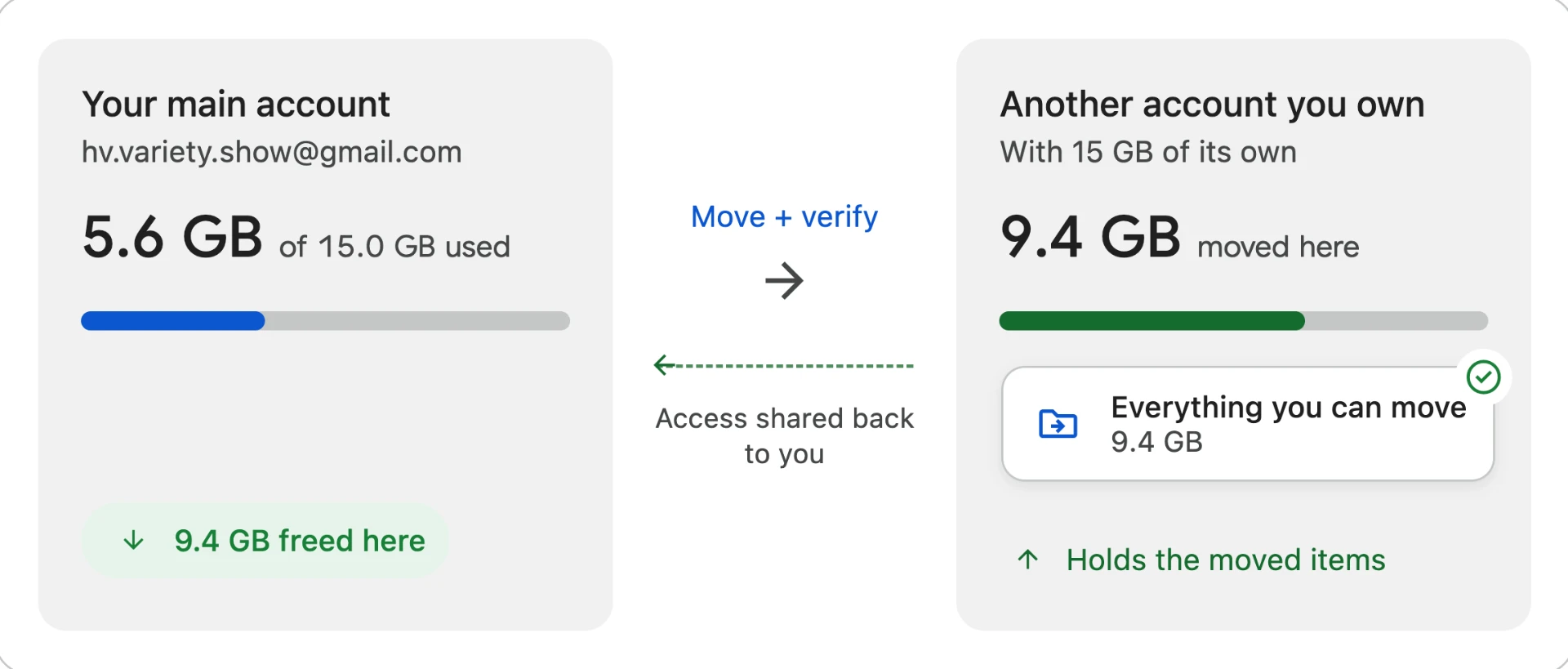
Link additional free Google accounts you own, move the files taking up the most space, and keep them accessible from your main account.
Google gives each personal account up to 15 GB of free storage across Gmail, Google Drive, and Google Photos. When that fills up, Google presents two obvious choices: delete your largest files or start subscribing to Google One.
There is a third option.
You can link more free Google accounts you own, move selected files and photos into those accounts, and share access back to your main account. With four eligible accounts at up to 15 GB each, you can use up to 60 GB of storage without a paid subscription.
The storage does not combine into one 60 GB meter. It remains distributed across the accounts. But your main account can remain the front door through which you access much of what you moved.
This guide explains the entire method, including how to do it manually, what continues working afterward, and the trade-offs you should understand before moving anything.
If you prefer to automate it, Storage Cleaner runs this same move-and-share-back method with verification at every step. The scan is free, but the method is yours either way.
The 60 GB math
Google's official language says that every personal Google Account includes up to 15 GB of storage shared across Gmail, Drive, and Photos. Google explains its free storage here.
| Free accounts you own | Combined storage across them |
|---|---|
| 1 account | Up to 15 GB |
| 2 accounts | Up to 30 GB |
| 3 accounts | Up to 45 GB |
| 4 accounts | Up to 60 GB |
Each account keeps its own storage allowance. You are not merging quotas or changing your main account's limit.
Instead, you are building a simple system:
- Your main account remains the account you use every day.
- Your additional accounts carry large files, photos, videos, and old records.
- Google's sharing features keep that content reachable from your main account.
Start with personal Google accounts you already own. An old account from college or a secondary Gmail address may already have unused storage.
Google may require phone verification when creating accounts and limits how many accounts a phone number can create. Google also uses the phrase "up to 15 GB," so check each account's actual allowance before planning your total capacity.
The honest trade-off
This method gives you more room without a monthly bill, but it is not identical to buying 100 GB inside one account.
Google Drive is the closest to seamless
Files can be transferred to the other account and shared back. You can still open, edit, and search for them from your main account.
With a manual transfer, files may move from My Drive to "Shared with me." You can add shortcuts to put them back into familiar folders.
Google Photos remains accessible, but not fully native
Photos and large videos can live in the other account's library and be shared back through an album.
From your main account, you can still browse them by their original dates. Shared items may also appear in classic Google Photos search based on dates, objects, filenames, and available location information. Google notes that classic search can include unsaved content from shared albums. See Google's Photos search documentation.
Location details are available only when they are present and the destination account shares them. Google does not share every type of estimated location automatically.
The larger compromise is personalization:
- Face groups and people labels do not transfer between accounts.
- The photos will not participate in your main library's personal Memories in the same way.
- Shared album highlights may occasionally appear as shared Memories if that setting is enabled.
- Unsaved shared content is not currently available to every Photos search experience, including some Ask Photos features.
Google explicitly states that face groups and labels are private to each account and are not shared with photos. Read Google's face-group documentation.
For old videos and large photo archives, that can be a reasonable compromise. You preserve the original files and can still find and view them without keeping all of their storage in your main account.
Gmail becomes an accessible archive
Gmail messages cannot be transferred between accounts while remaining live messages in your original inbox.
Important old messages and attachments can instead be saved as files in the other account's Drive and shared back. They remain accessible, but they are files rather than inbox conversations.
This works best for old, storage-heavy email that you want to preserve but rarely need to search inside Gmail.
Who should use this method?
This method is for someone who:
- Is approaching the 15 GB limit
- Needs another 10, 20, or 40 GB of headroom
- Already owns additional personal Google accounts
- Wants to avoid another recurring bill
- Has older content that does not need to remain fully native to one account
- Is comfortable with some photos living in shared albums
It is not the right choice for everyone.
If you genuinely need 100 GB inside one seamless account, consider Google One. It is a good product and may be worth the convenience. Your Photos library remains unified, Gmail stays searchable, and you do not need to maintain several accounts.
This method is for people who do not need 100 GB. They simply need more than 15 GB and would rather use free space they already have than sign up for a monthly plan.
How the move-and-share-back method works
The mechanism is simple:
- Find the largest items consuming storage.
- Choose another personal Google account you own.
- Move ownership or verified copies into that account.
- Share the content back to your main account.
- Open and verify the moved content.
- Only then remove the original from your main account.
Moving Google Drive files manually
Drive is the simplest and most effective part of the method.
Google Drive allows ownership of many files to be transferred between personal accounts. After the transfer, the file counts against the new owner's storage instead of the previous owner's quota. Your main account can remain an editor.
Google documents Drive ownership transfers here.
Step by step
- Visit your Google Drive storage view and sort by size.
- Select a large file you want to keep.
- Share it with your other account as an editor.
- Open the sharing controls again.
- Choose Transfer ownership.
- Sign into the destination account and accept the transfer.
- Return to your main account and open the file.
- Add a shortcut if you want it inside a familiar My Drive folder.
Ownership determines which account carries the storage. After the transfer is accepted, the destination account becomes responsible for the file.
One important limitation: transferring ownership of a folder does not automatically transfer ownership of the files inside it. Each file retains its existing owner. Google explains the folder limitation here.
That makes a few manual transfers easy, but moving hundreds of files can become tedious.
Moving Google Photos manually
Google Photos does not offer the same ownership-transfer control as Drive. The destination account must save its own copies, then share those copies back.
The order matters.
Step by step
- In your main account, create an album containing the photos and videos you want to move.
- Share that album with the destination account.
- Open the album from the destination account.
- Save the photos and videos into the destination account's library.
- Confirm that the saved copies appear at their original dates and open correctly.
- From the destination account, create a new album containing those saved copies.
- Share the destination-owned album back to your main account.
- Confirm that the album opens from your main account.
- Only then delete the original copies from your main account.
- Empty Photos Trash when you are certain the move is complete.
Why create the second album?
If the original album is owned by your main account, deleting its original photos may cause them to disappear from that shared album. The surviving album should be owned by the account that now holds the copies.
Google confirms that saving shared photos creates copies in the recipient's library and that those copies generally count against the recipient's quota. See Google's Photos sharing documentation.
Do not save the shared copies back into your primary account's library afterward. That can make your main account carry storage for them again.
One more exception: photos and videos backed up in High quality or Express quality before June 1, 2021 may not count against storage. Leave those where they are. Moving them can turn previously uncounted content into counted storage. Google documents that exception here.
Preserving large Gmail messages
Gmail is the least elegant part to handle manually.
For each important storage-heavy message:
- Download its attachments or save the complete message as a file.
- Upload those files into a clearly labeled folder in the destination account's Drive.
- Share the folder back to your main account.
- Open several files from your main account and verify them.
- Delete the original email only if you no longer need it inside Gmail.
- Empty Gmail Trash when you are certain.
This does not produce a second living inbox. It creates an organized archive of messages and attachments in Drive.
Use it for old contracts, receipts, family attachments, or ten-year-old messages you want to preserve but rarely search.
Clean before you move
Do not use additional accounts to preserve garbage.
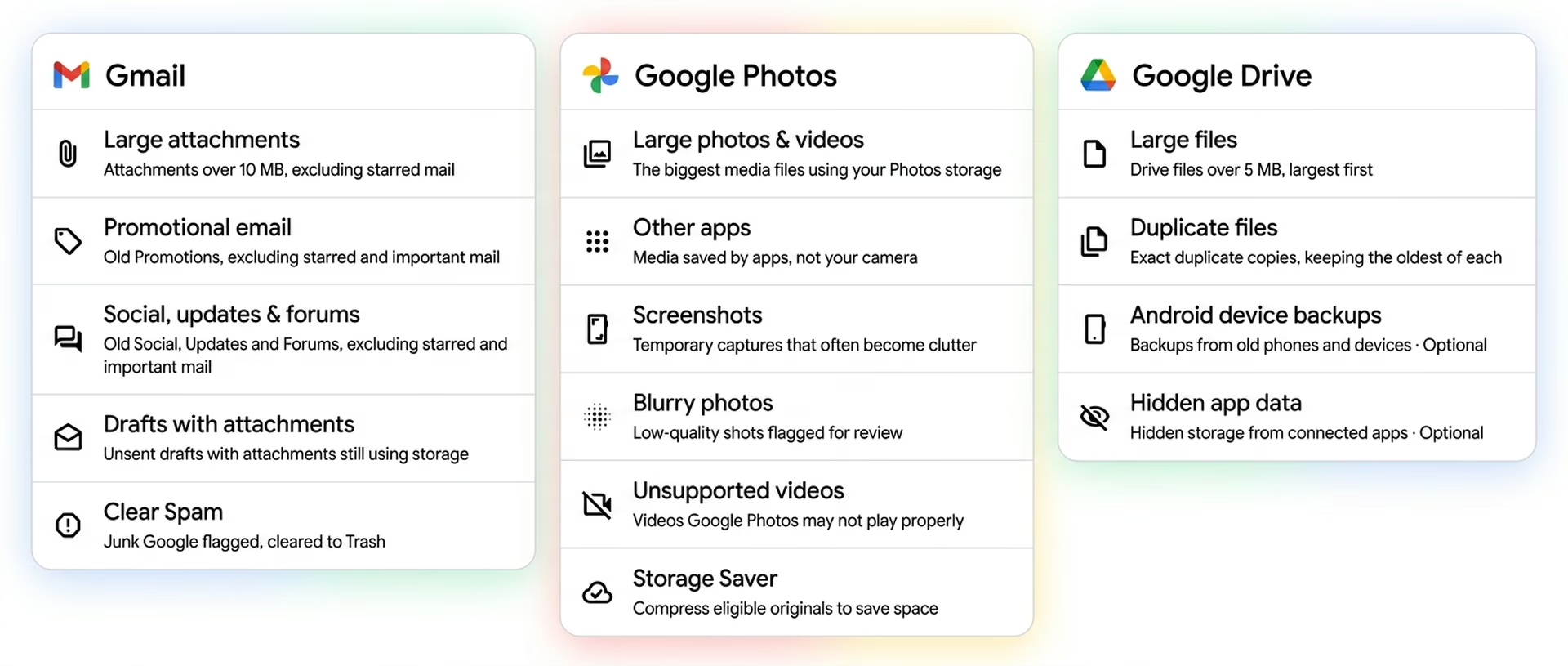
Before moving large amounts of content, remove items that are genuinely disposable:
- Duplicate Drive files
- Old device backups
- Hidden app data
- Promotional email
- Social and notification email
- Spam
- Screenshots
- Blurry photos
- App-saved media
- Unsupported videos
- Files already sitting in Trash
Be careful with broad deletion rules. The biggest files are often the most meaningful.
A safe cleanup should exclude starred and important mail, recent content, personal or financial messages, and anything matching people, senders, or keywords you want to protect. Our guide to freeing up Google storage walks through the exact searches to run first.
Move what matters. Delete what does not.
Not sure what is worth moving? Storage Cleaner scans Gmail, Drive, and Photos for free and shows what to clean and what to move.
Run a free scanThe nuclear option: start over
Sometimes the right answer is not moving photos but removing them. A surprisingly common situation: someone installs Google Photos on a new phone, the entire camera roll is automatically backed up, and suddenly their Google storage is full of photos they never intended to keep in the cloud.
Google Photos does not provide a simple delete-all option. Storage Cleaner includes a guided Delete All Photos flow for exactly this case: it clears the entire library with clear confirmation at every step, and everything remains in Google Trash for 30 days before permanent deletion, so the decision is reversible while you settle in.
If you go this route, download anything you want to keep first, and consider turning off backup on your phone before signing in again so the cycle does not repeat.
Keep the additional accounts safe
Add recovery information
Give every destination account a recovery email, recovery phone number, and strong password. Use two-step verification where possible.
Keep the accounts active
Google may delete a personal account and its content after at least two years of inactivity. Sign into each destination account periodically and set a recurring reminder. Read Google's Inactive Account Policy.
Use only accounts you own
Do not use purchased accounts, fake identities, work accounts, school accounts, or someone else's personal account.
Keep another backup
Shared access is not a backup. Irreplaceable family videos, legal documents, and original photos deserve another copy outside this system.
Verify everything
Open files, play videos, compare photo counts, and download sample attachments before removing originals.
Is this allowed?
This method uses ordinary Google accounts and Google's existing ownership, copying, and sharing features.
It does not merge quotas, bypass storage limits, or make one account appear to have more capacity than it does. Every account remains within its own allowance.
Google does limit account creation and phone verification to prevent abuse. Use accounts you legitimately own and follow Google's terms.
The tool that does it with peace of mind
Everything in this guide can be done manually for free.
We built Storage Cleaner for the part that knowledge alone does not solve: hours of clicking, rebuilding access, and worrying that one mistake could delete the only copy of something important.
Storage Cleaner begins with a free scan across Gmail, Google Drive, and Google Photos. It shows what you can safely clean and what may be worth moving to another free account instead.
Connect up to three other personal Google accounts you own, select what you want to keep, and Storage Cleaner handles the move-and-share-back process:
- Drive files transfer to another account while remaining organized and reachable.
- Photos and videos move through destination-owned albums in the correct order.
- Heavy Gmail messages and attachments become organized files in the other account's Drive.
- Access is shared back to your main account.
Storage Cleaner runs locally in your browser. Requests go directly between your browser and Google. Your email, files, photos, and videos are not uploaded to our servers.
The extension has completed Google OAuth verification and an independent CASA security assessment. You can revoke its Google access at any time.
The scan is free, so you can see what is taking up space before you move anything.
You can also try the process on one real file before trusting it with anything else. Storage Cleaner moves the file, shows you that the other account now carries it, verifies that you can still open it, and lets you undo the move.
Frequently asked questions
How can I get up to 60 GB of Google storage without a paid plan?
Link additional free personal Google accounts you own. Move selected files and photos into those accounts, then share access back to your main account. Four eligible accounts with up to 15 GB each provide up to 60 GB across the accounts.
Does my main account become a 60 GB account?
No. Each quota stays separate. Your main account becomes the front door through which you access content stored by the other accounts.
Will moved photos still be searchable?
Shared photos may appear in classic search based on dates, objects, filenames, and available location information. Search behavior varies by Photos experience, and unsaved shared content is not available to every feature.
Will people tags and Memories still work?
Not in the same way. Face groups and people labels are private to each account and do not transfer. Moved photos will not participate in your main library's personal Memories in the same way, although Google may occasionally surface highlights from shared albums if shared Memories are enabled.
What happens to moved email?
Selected messages and attachments become files stored in the other account's Drive and shared back to your main account. They remain accessible, but they are no longer live messages in your primary inbox.
Should I do this instead of buying Google One?
Use this method if you need modest additional headroom and can accept distributed storage. If you need 100 GB inside one seamless account, Google One is probably the better choice.
Is this a backup?
No. Keep a separate backup of anything irreplaceable.
How do I transfer Google Photos to another account?
Google Photos has no ownership-transfer button. In your main account, create an album with the photos and videos you want to move and share it with the destination account. From the destination account, save the items into its library, then open several copies to verify their dates, file details, resolution, and video playback. From the destination account, create a new album containing those saved copies and share it back to your main account. Only after verifying the copies, delete the originals from your main account and empty Photos Trash. Do not save the shared items back into your main library afterward - that can make them count against its storage again.
Can I combine storage from two Google accounts?
Not into one meter. Each personal account keeps its own allowance of up to 15 GB. What you can do is use the accounts together: move selected large files, photos, and old email attachments into another account you own, then share access back to your main account. Four eligible accounts at up to 15 GB each provide up to 60 GB across them, with your main account remaining the front door through which you access what you moved.
More room without another monthly bill
A full 15 GB account does not mean you must delete your largest memories or immediately sign up for another paid plan.
You can get up to 60 GB without a paid plan by linking more free Google accounts you own, moving selected content into them, and sharing access back to your main account.
The bargain is straightforward: you get more storage without a monthly bill. Your Drive files remain highly accessible. Photos and videos remain viewable and searchable in useful ways, but they do not behave exactly like content stored in your main Photos library.
If that trade-off works for you, follow the manual steps above. If you want the same method with verification, organization, and safety checks built in, run the free Storage Cleaner scan.
Keep what matters without buying more storage.
Storage Cleaner is an independent extension and is not affiliated with, endorsed by, or sponsored by Google LLC. Google, Gmail, Google Drive, Google Photos, and Google One are trademarks of Google LLC. Personal Google accounts only.